
Phase 1: Retrieve the IP Address (PAX Terminal)
-
Press the Menu button or press FUNC and 1 at the same time.

-
Enter your password.
Note: The default password is the current date in MMDDYYYY format.
-
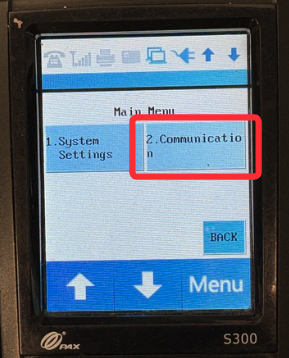
Press the Down Arrow, then select 2. Communication.
-
Enter your password again.
-
Press the Down Arrow 2x, then select 3. LAN Parameters.

-
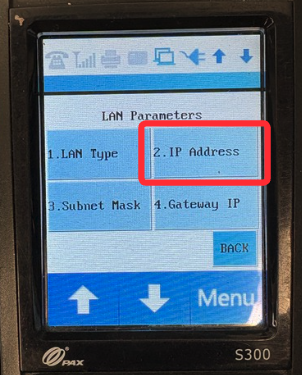
Select 2. IP Address.
-
Write down the IP Address displayed on the screen.
Important: You must discard any leading zeros before entering this into the POS. For example, if the terminal displays
192.168.001.023, you will write down192.168.1.23. -
Press the Back button on the screen several times until you return to the home screen.
Phase 2: Configure the System (Purejoin POS)
-
Open your Purejoin POS application.
-
Navigate to Menu > Settings> Credit Card Process.
-
Select Online.
-
Select POSLink – PAX S300.
-
Enter the formatted IP Address you retrieved in Phase 1.
-
Enter 10009 for the Port number.
-
Tap Save.
-
Restart the POS system for the changes to take effect.